
Convert units the easy way in Excel


Converting data from one measurement system to another is a common need, whether it’s for clarity, comparison, or simply to match standards.
It could be length, weight, speed, volume, or temperature — to name five.
The CONVERT function does what the name suggests. It converts data from one unit to another, and it’s very simple to use.
=CONVERT(number, from_unit, to_unit)Example
Here’s one for you: there’s a list of countries with their average temperatures in Fahrenheit.
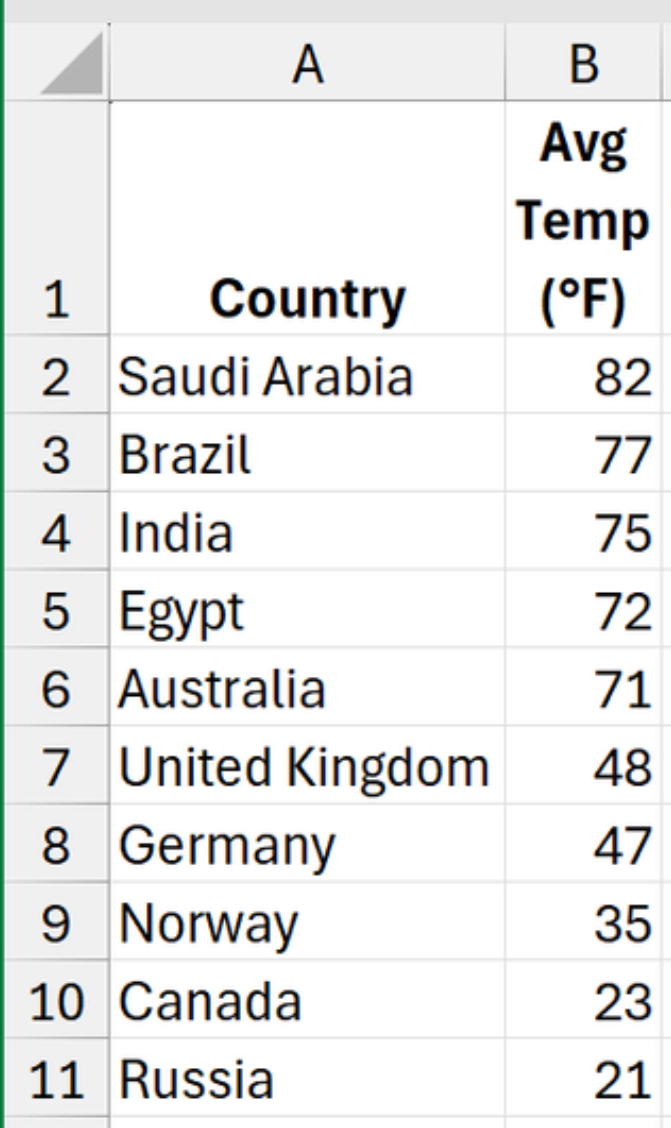
Instead of using a mathematical formula to convert these to Celsius, you can use CONVERT.
The original temperatures are in B2:B11, so the formula in C2 is:
=CONVERT(B2,"F","C")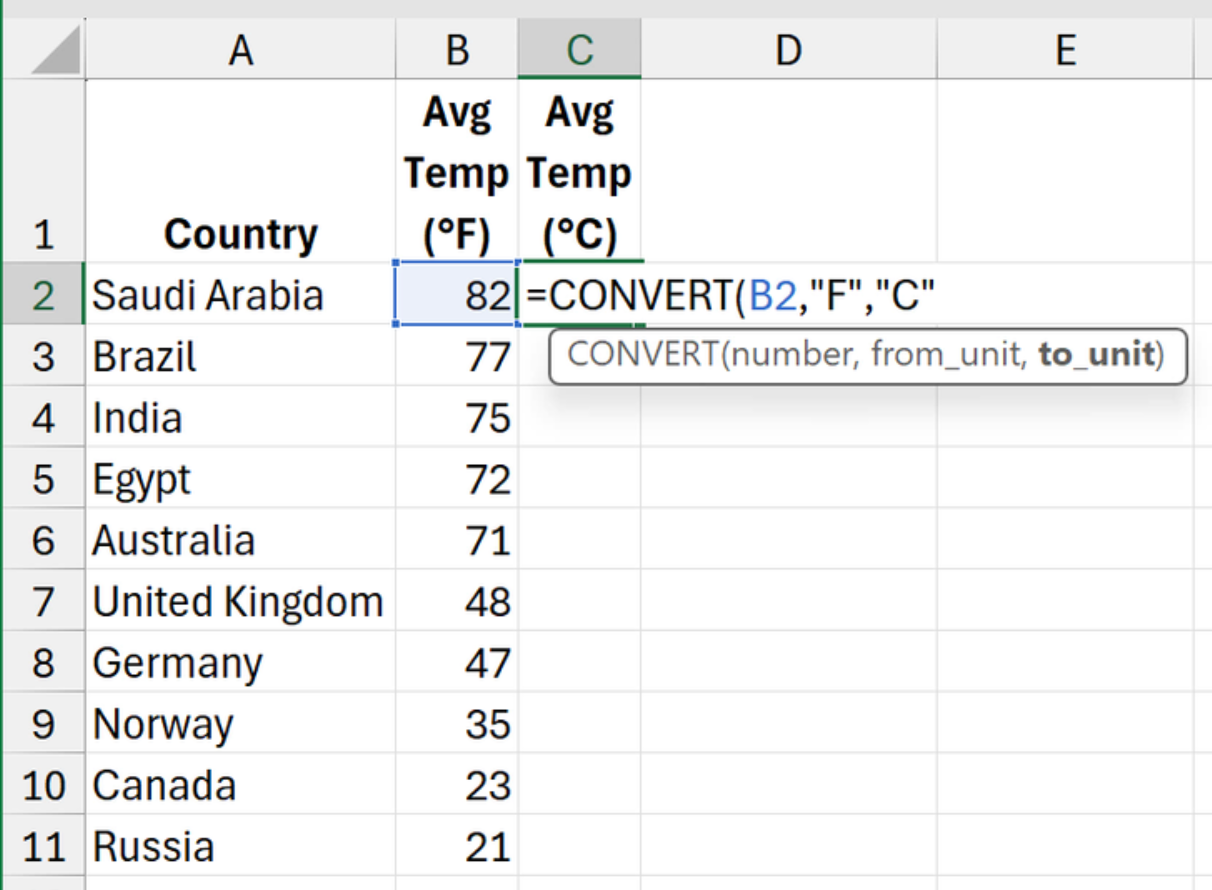
Using the cell’s fill handle, drag it down to C11 to cover the full set.
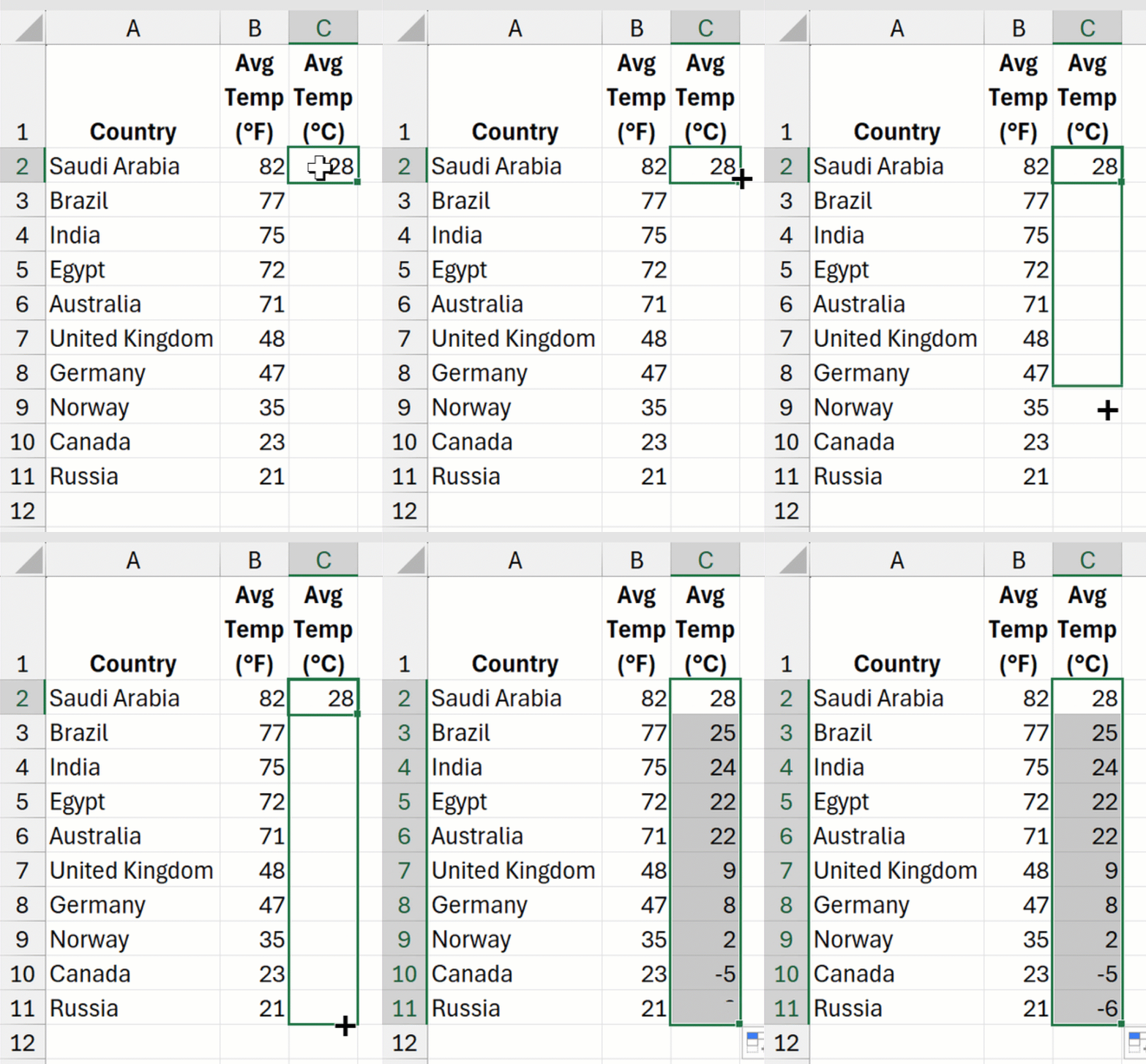
But hang on, that’s the old-fashioned way, as there are 10 formulas!
There’s a good reason for that: CONVERT is only designed to work with a single value. Attempting to use B2:B11 in the first argument results in a VALUE error.
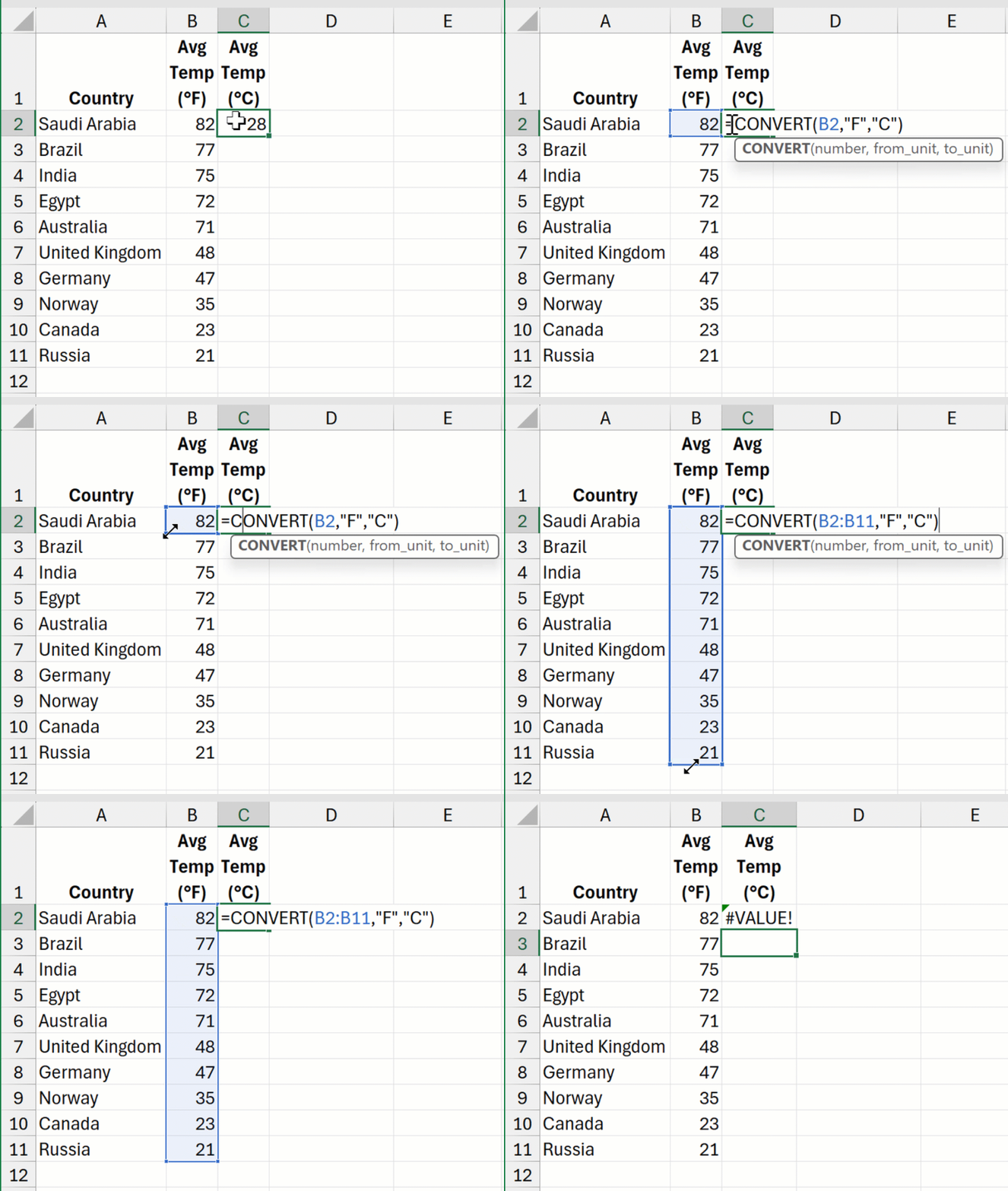
It’s unclear why this is, and why the function hasn’t been updated to support dynamic arrays. However, there is a secret hack: add a double unary operator (--) before the range.
The formula then becomes:
=CONVERT(--B2:B11,"F","C")This spills all 10 converted temperatures down to C11.
Missing units
Strangely, I found the AutoComplete menu did not list every unit supported.
For example, although miles per hour ("mph") exists, kilometres per hour doesn’t. However, it is still possible by using "km/hr".
Moreover, pounds ("lbm") is listed, but kilograms isn’t. However, "kg" does still work, though.
I’m really not sure why this function has a few quirks. 🤔