
How to enable Dark Mode in Excel

Dark Mode is available everywhere these days across a multitude of apps and devices.
Usually, the process of switching it on and off revolves around a single toggle. Weirdly, Excel’s Dark Mode works a little differently, though.
Go back to 2016, and the ‘Black’ Office Theme was released, but this solely affected the ribbon and other UI features.
Only earlier this year could we begin to apply a lick of paint to the worksheet as well.
How?
Here’s the preliminary stage:
- Select File to open the Backstage view.
- Select Account to open your account settings.
- In the Office Theme dropdown, choose Black.
On the View tab, the Switch Modes button now appears. Click it to darkify the worksheet grid — do the same to switch it back.
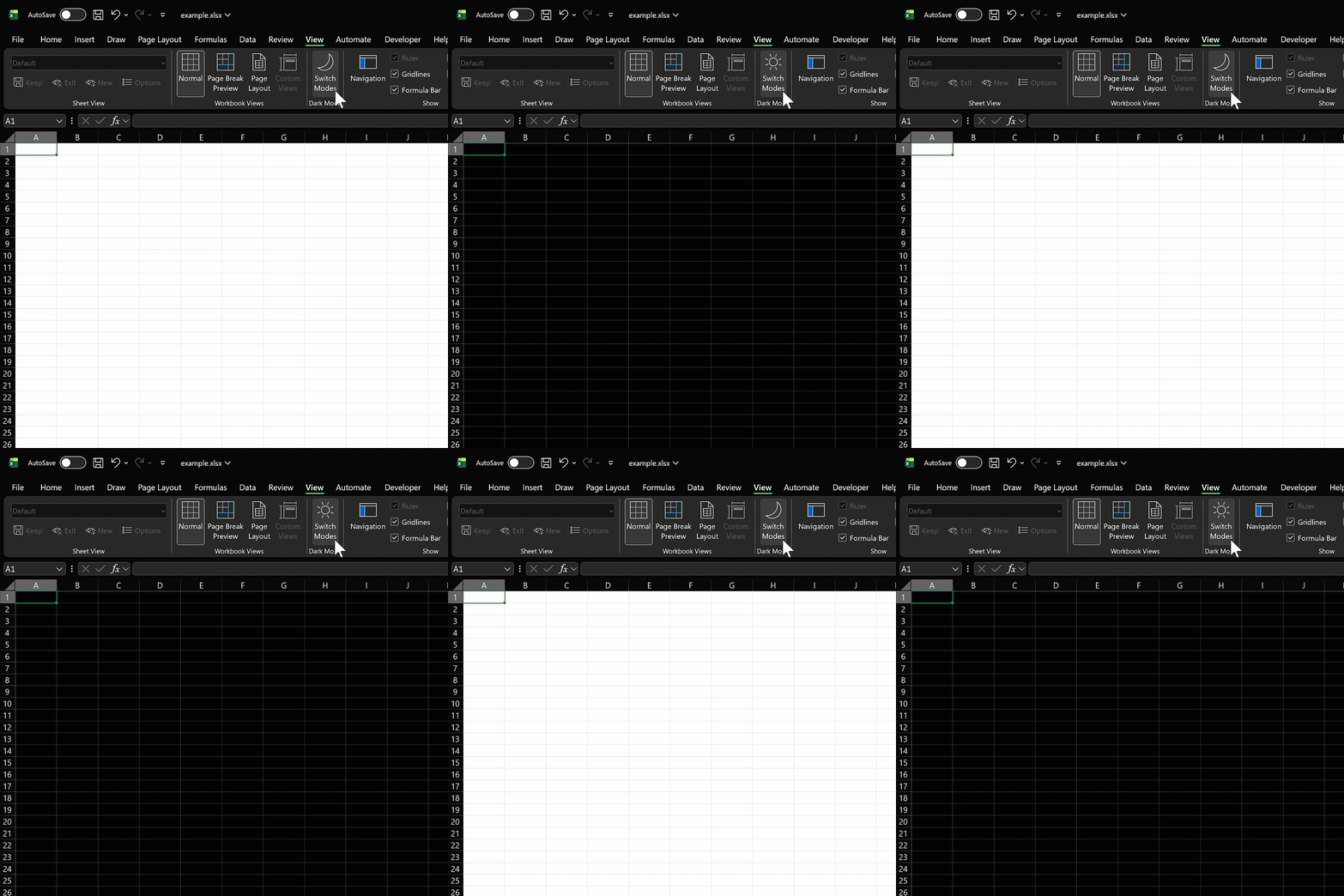
It’s a shame this isn’t a single-click process, but it’s not entirely surprising given the feature wasn’t built in one go.
Colour confusion
You’ll notice that fill and font colours appear differently when Dark Mode is enabled:
Not everything is affected, though. For example, dialog boxes and the Power Query ribbon remain untouched, as do charts.
It’ll be interesting to see if that changes over time.