Add line breaks in custom formats


Custom formatting is a great way to control how values are displayed, but formats are designed to sit on a single line, which isn’t always ideal.
Take a football match summary, for example. You might want to display the day, date, and time of a game using a code like:
dddd dd mmmm yyyy hh:mm
Saturday 17 January 2026 12:30
It works, but doesn’t look great all on one line. And since these elements are inherently linked, splitting them down multiple cells isn’t ideal either.
At first glance, there doesn’t seem to be a way around this — but there is a little-known trick.
Do the following:
- Press Ctrl + 1 to open the Format Cells window.
- On the Number tab, choose Custom.
- Enter the format step by step, using Ctrl + J to insert a line break between each part.
It can be a bit tricky to follow, as the text field doesn’t expand and the preview doesn’t fully reflect what’s happening — but it works.
The final format should be:
dddd
dd mmmm yyyy
hh:mm- Click OK.
- On the Home tab, toggle on Wrap Text.
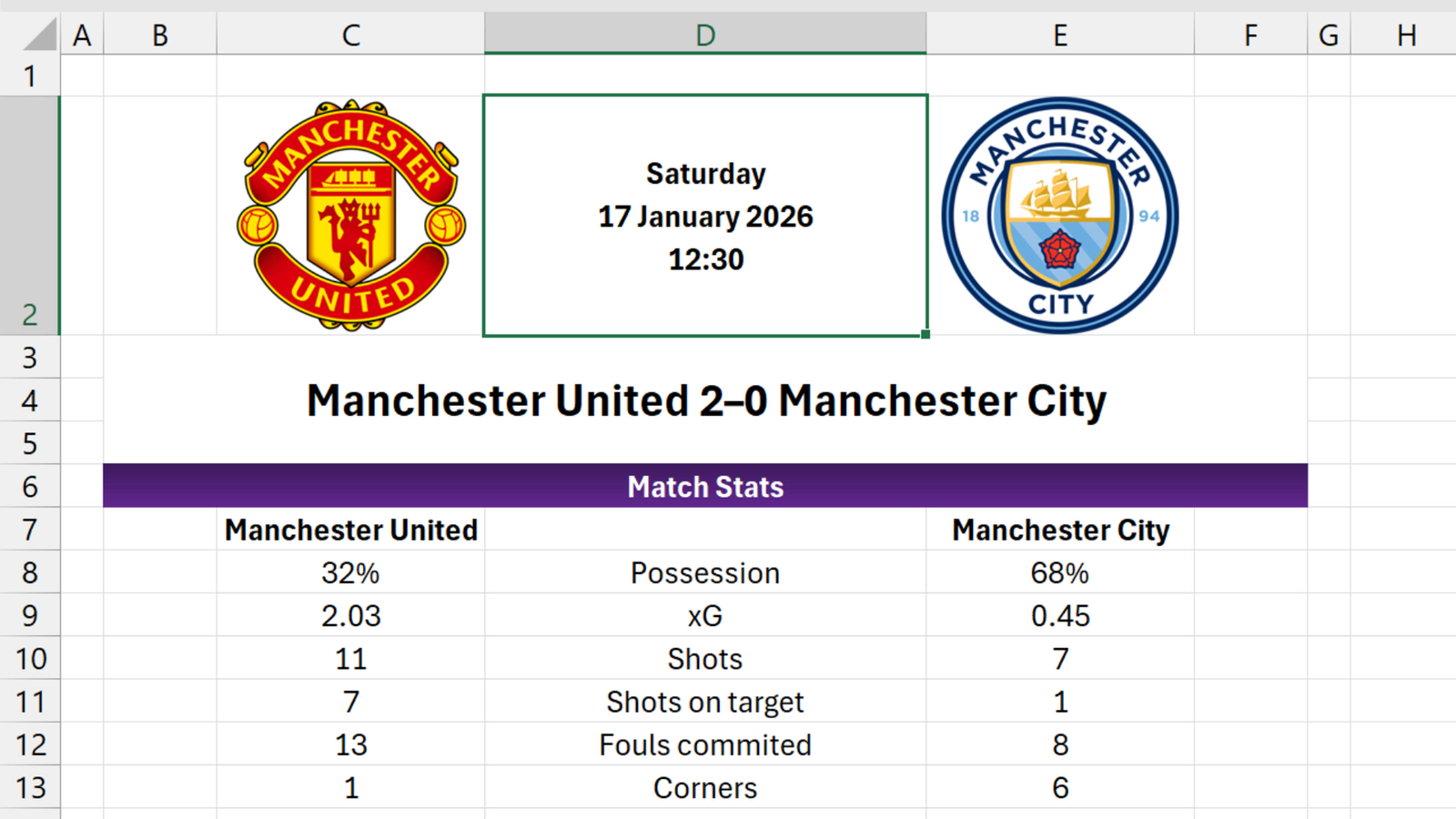
Now the day, date, and time are presented in a much nicer way:
Saturday
17 January 2026
12:30
All from a single underlying value!