
Focus Cell can’t stay focused


Focus Cell is a great feature that has only been around for 1½ years, despite many people requesting it for years before.
With a single click of the button on the View tab, Excel highlights the active row and column, so you can easily see where you are on the grid.

As helpful as this is, only the other day I realised it has a glaring shortfall. In any application window, it’s common for parts of the interface to change when you click off it. This is when the window becomes inactive.

In Excel, features on the title bar, such as the Quick Access Toolbar, the search box, and the window controls, become greyed out but remain visible.
However, the same can’t be said for the Focus Cell highlighting, which becomes invisible. In fact, this stems from the active cell itself not being visible, even though the reference still appears in the Name Box.
Why does this matter? Well, let me give you a real-world example…
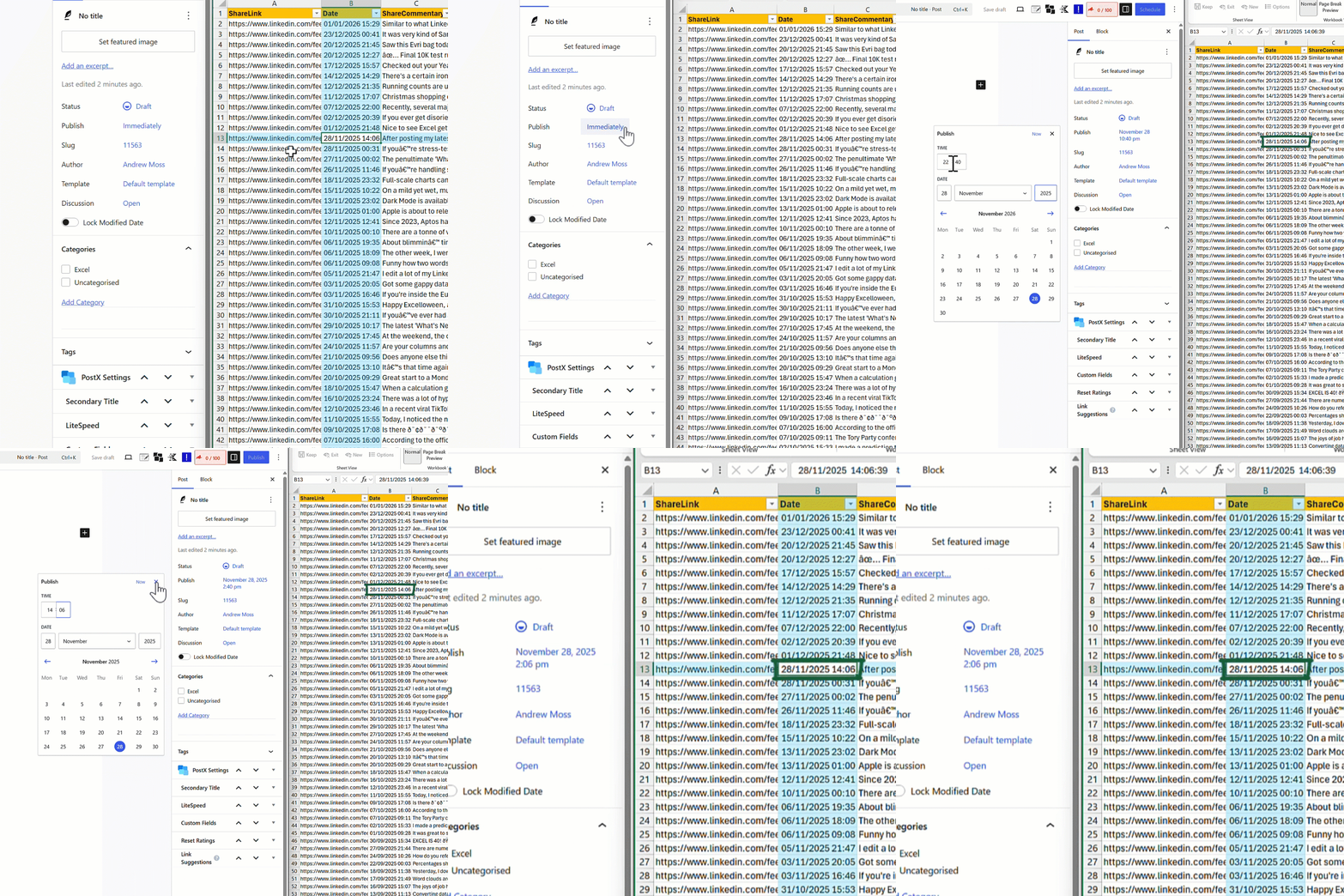
The other day, I was repurposing some of my LinkedIn posts as WordPress blog posts. I had my web browser on one side of the screen and my LinkedIn archive in tabular format on the other.
Focus Cell was helpful while navigating the worksheet. But as soon as I clicked in the browser to copy content across, the highlighting disappeared. That meant constantly clicking back into Excel to check I was copying data from the right place.
For any task like this, it makes everything that little bit harder. However, the good news is there’s a solution:
- Select the entire worksheet range
- Go to Home > Conditional Formatting > New Rule > Use a formula to determine which cells to format
- Copy and paste
=OR(CELL("col")=COLUMN(),CELL("row")=ROW()) - Select Format > Fill and pick a colour
- Select OK in each window
- Repeat step 2
- Copy and paste
=AND(CELL("col")=COLUMN(),CELL("row")=ROW()) - Select Format > Font > Bold
- Select Border > Outline
- Select OK in each window
Press Alt + F11 to open the VBA Editor, double-click the relevant Sheet object, and then copy and paste the following code there:
Private Sub Worksheet_SelectionChange _
(ByVal Target As Range)
If Application.CutCopyMode = False Then
Application.Calculate
End If
End Sub
Back in the main Excel window, click around in the grid, and the active row and column will be highlighted.
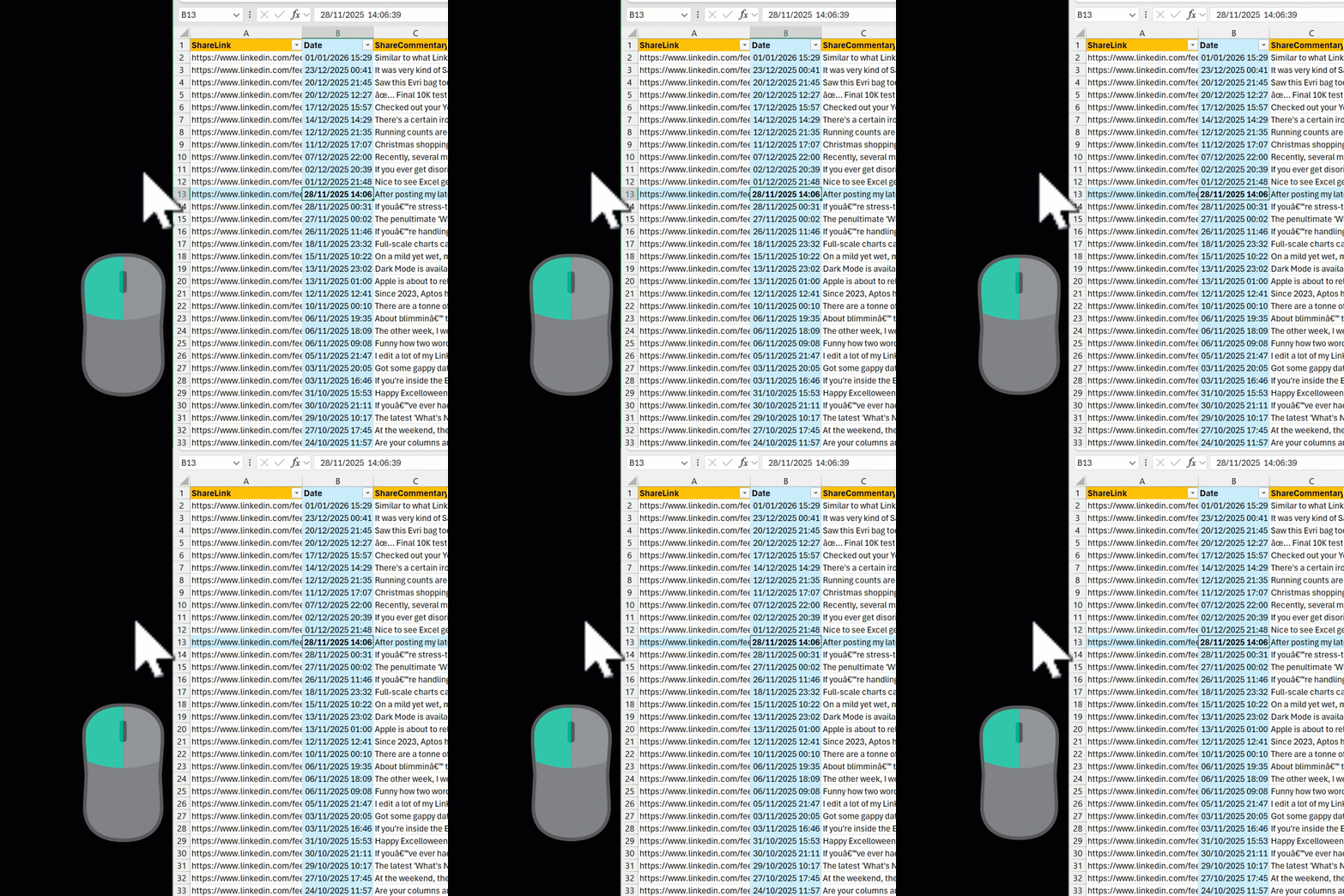
Then click anywhere outside the Excel window, and the highlighting retains its visibility!
It’s a shame Focus Cell can’t do this. Ultimately, its invisibility is just a byproduct of the active cell becoming invisible when Excel isn’t the active window. Sort that out, and Focus Cell follows.
This is an update we need.