
4 ways to calculate percentages in Excel

Percentages show up everywhere — in finance, business, and day-to-day life.
In Excel, there are four straightforward ways to work with percentages. Each example below assumes the Percentage number format is applied, so you don’t have to multiply by 100.
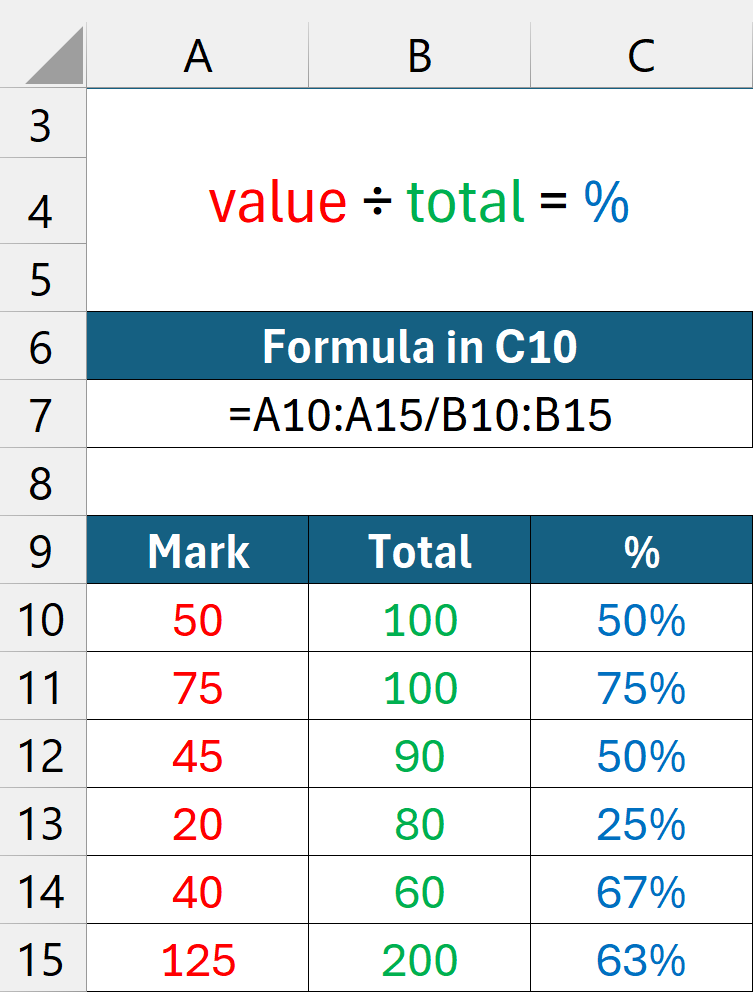
1. Percentage of total
What share of the whole is this?
value ÷ total = %
E.g. 50 ÷ 100 = 50%
50 marks out of 100 is 50%
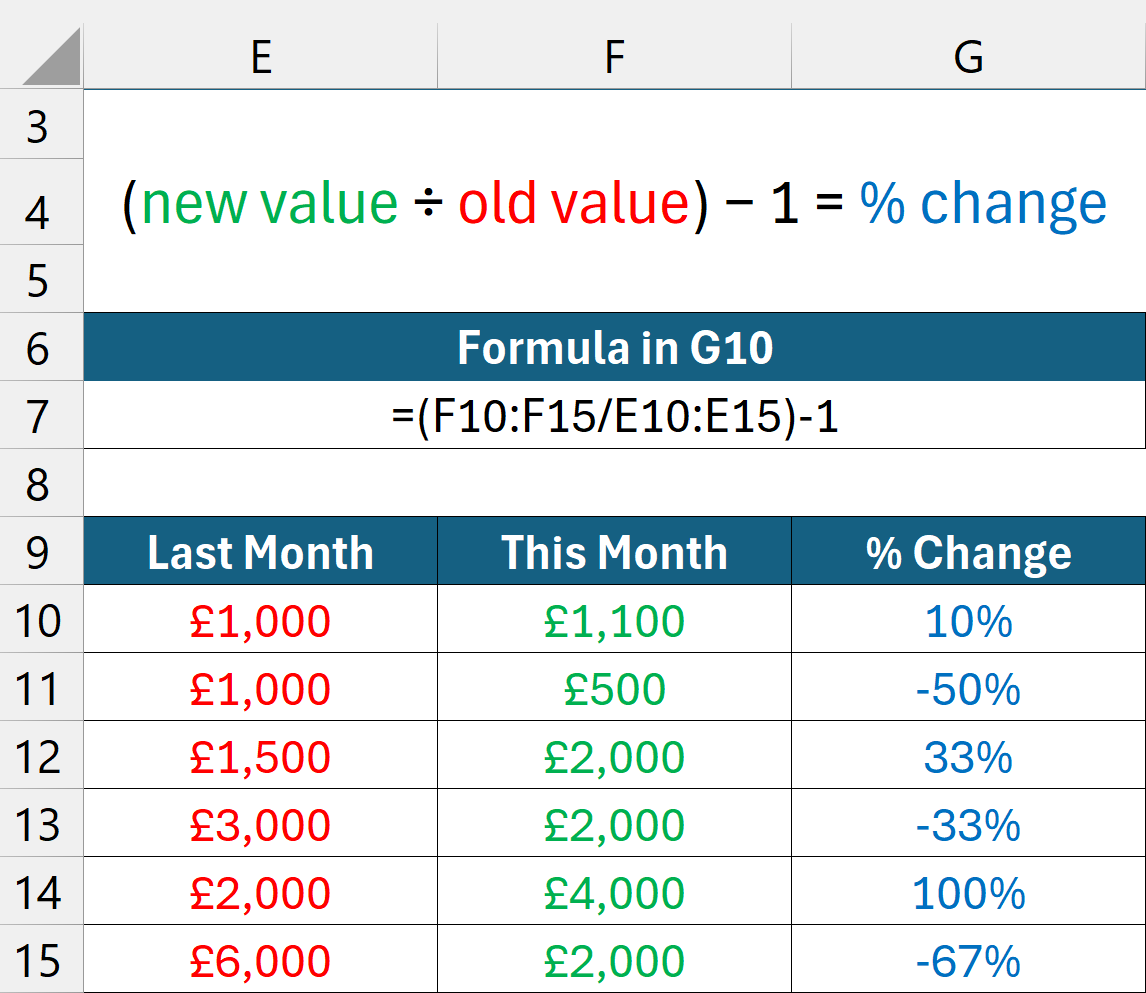
2. Percentage change (values)
How much bigger or smaller is the new value?
(new value ÷ old value) − 1 = % change
E.g. (£1,100 ÷ £1,000) – 1 = 10%
£1,000 to £1,100 is a 10% increase
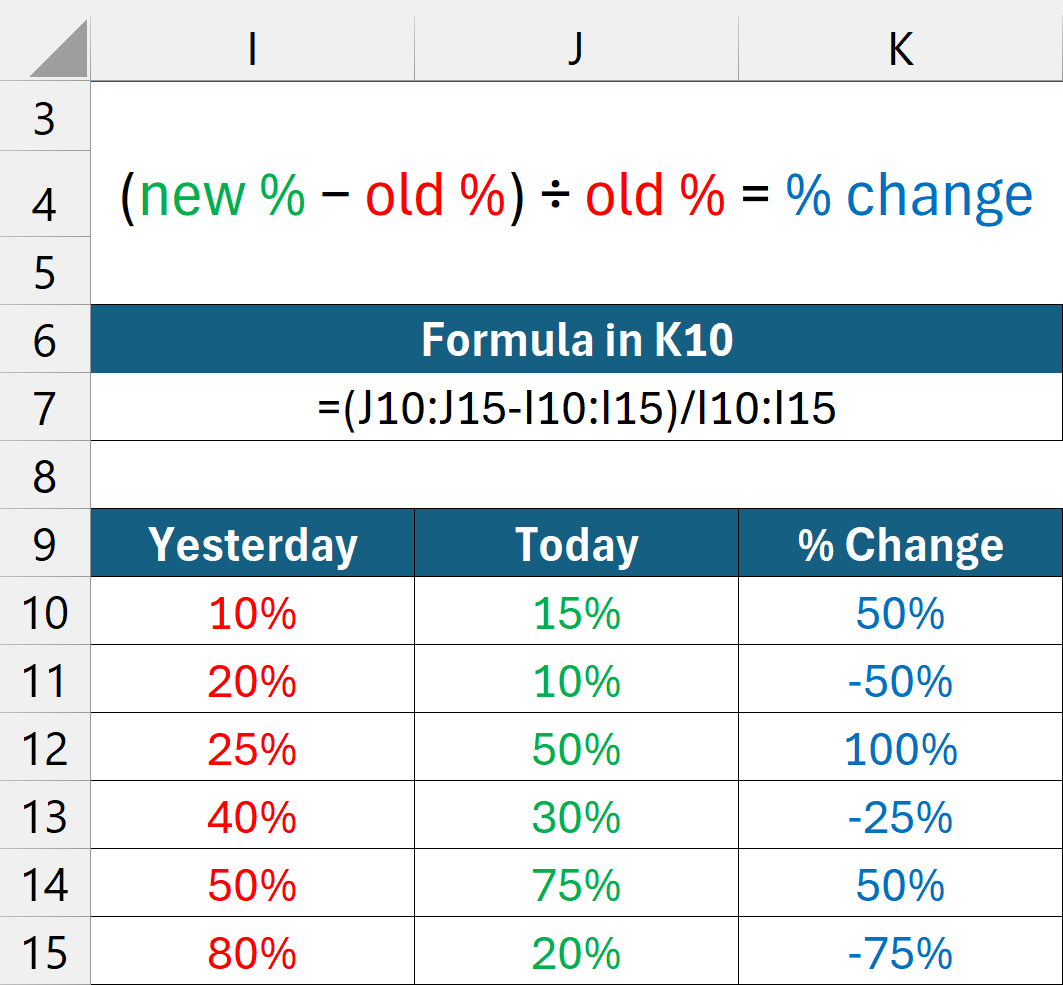
3. Percentage change (percentages)
How much has a rate or proportion changed?
(new % − old %) ÷ old % = % change
E.g. (15% – 10%) ÷ 10% = 50%
10% to 15% is a 50% increase
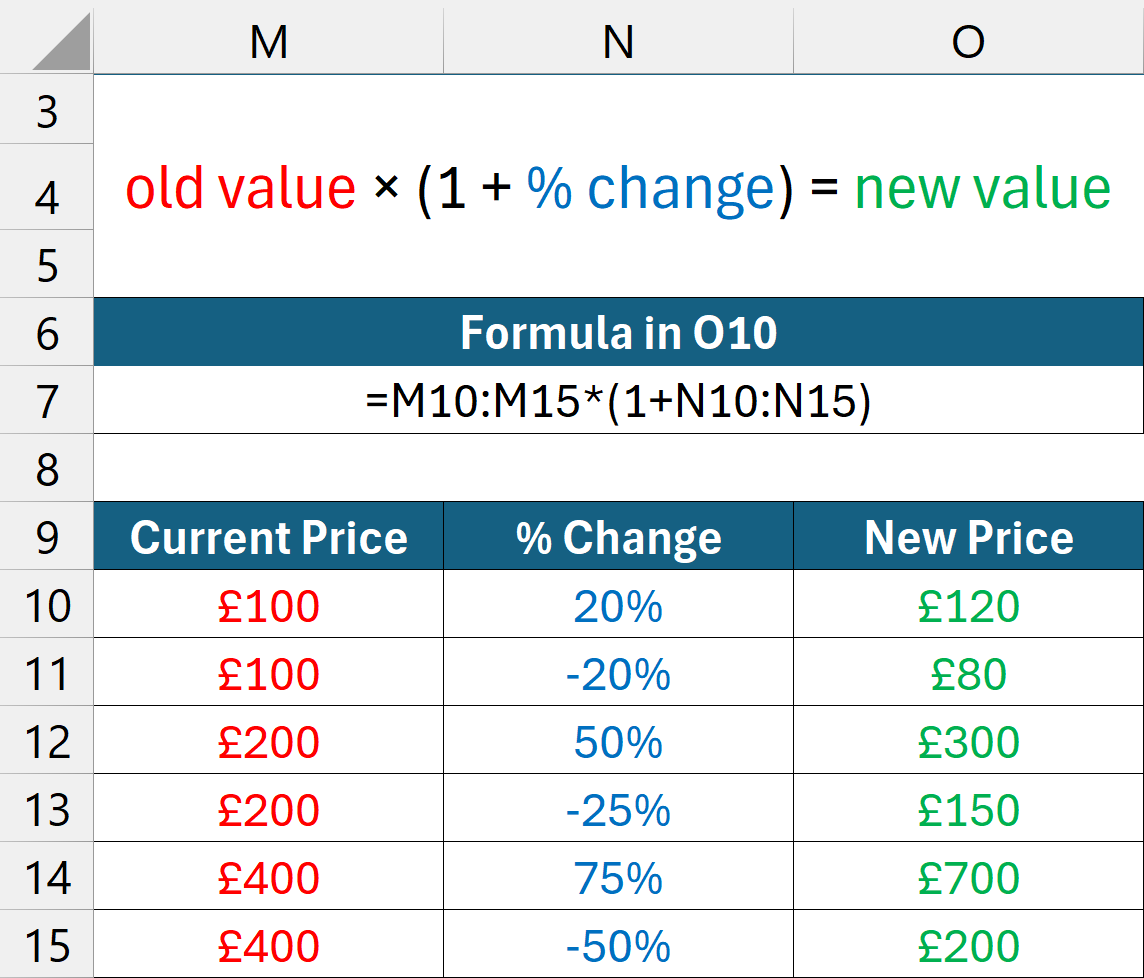
4. Value after percentage change
What’s the new value after applying a % increase or decrease?
old value × (1 + % change) = new value
E.g. £100 × (1 + 10%)
10% increase to £100 is £110
Final tip
Always use brackets in your formulas and ensure they’re in the right place. Otherwise, the calculations might not give you what you expect.