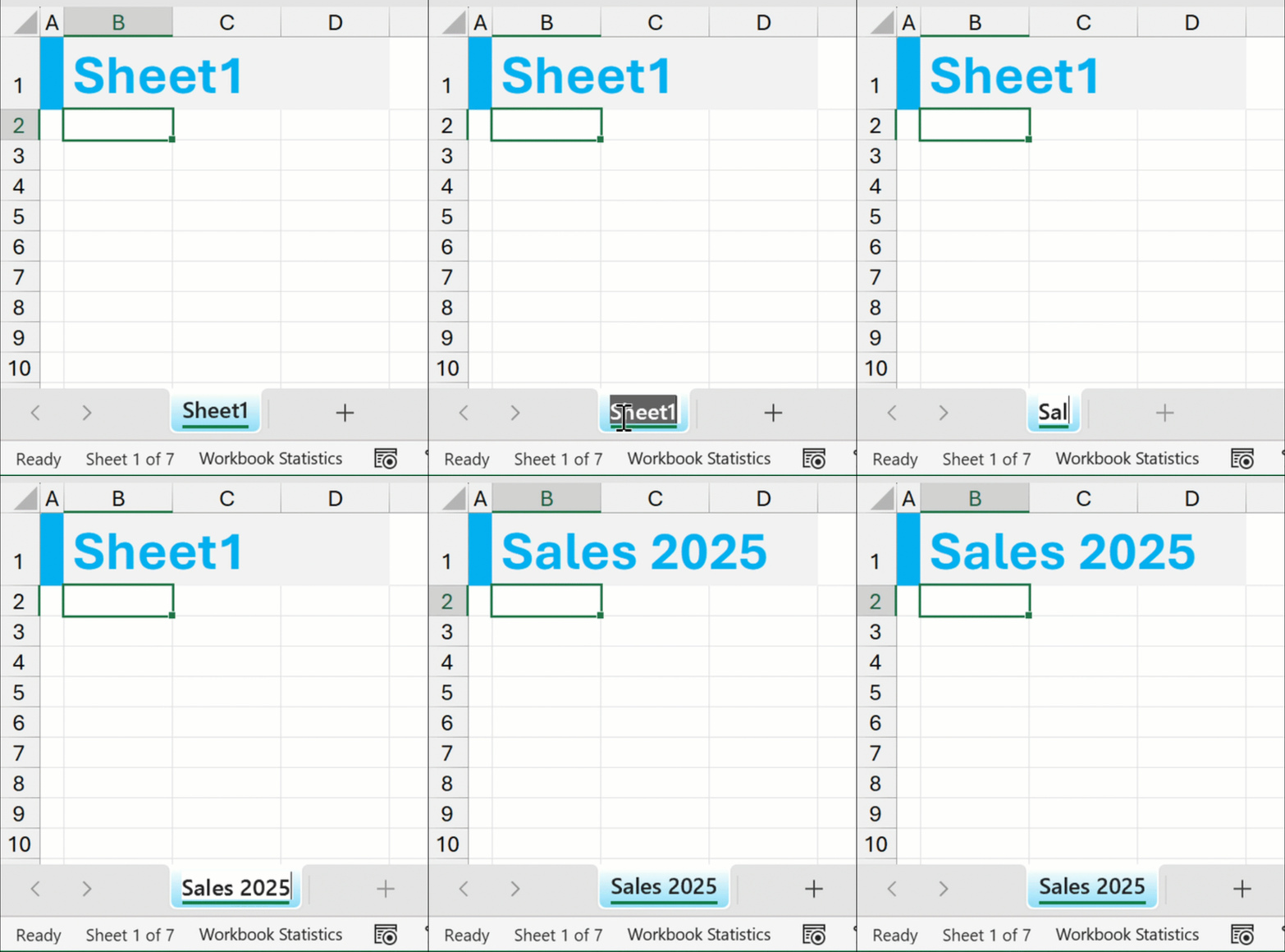
Sync the tab name with the worksheet title in Excel


Having a title in each of your Excel worksheets is often a good idea to help distinguish between them.
Typically, you’ll want the title to be the same as the tab name. However, if you change the tab name, the worksheet title does not update automatically.
To solve it, carry out this two-step solution:
1
In your title cell, enter:
=CELL("filename",A1)

This returns the full file path of the current workbook, including the sheet name at the end.
E.g. \\Mac\Home\Desktop\[example.xlsx]Sheet1

2
Wrap the formula in TEXTAFTER, and include ] in the delimiter argument to extract the sheet name (e.g. Sheet1):
=TEXTAFTER(CELL("filename",A1),"]")
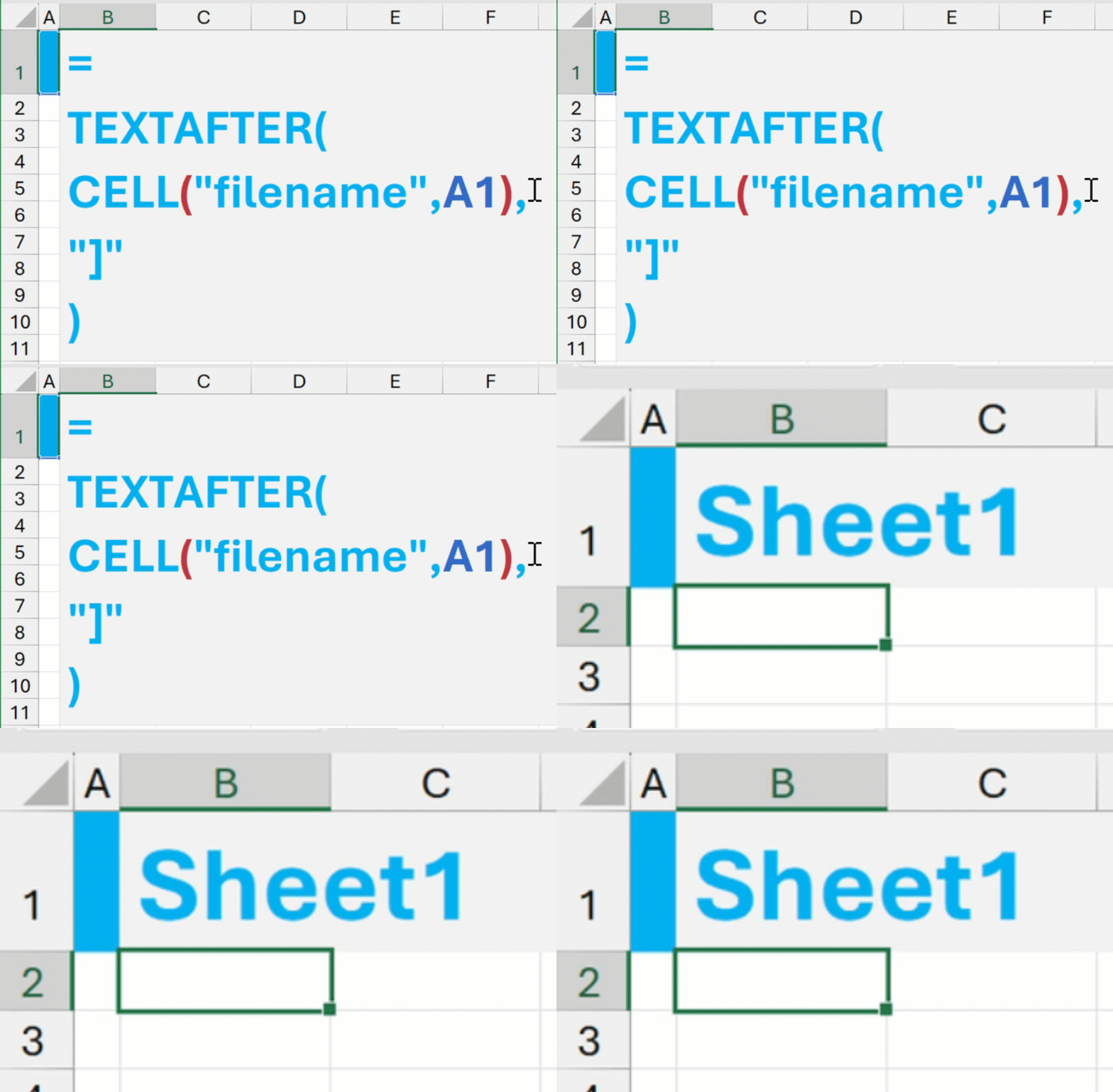
Now, rename the tab and watch the worksheet title synchronise!
E.g. Sheet1 → Sales 2025